Windows 11 Update Error 0x80070490: Diagnosing and Repairing a Corrupted Component Store
· 5 min read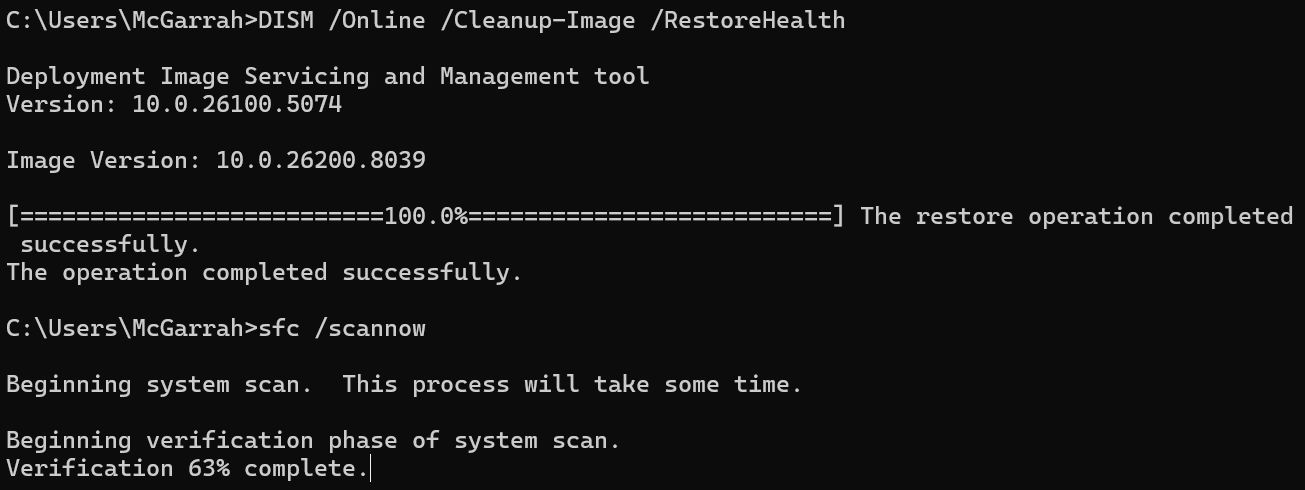
Two days ago I wrote about DISM RestoreHealth getting stuck at 62.3% on one of my Windows 11 laptops. That machine needed a component store repair after a 24H2 update went sideways. I got it sorted, felt good about it, and moved on.
Then my other ThinkPad decided it wanted attention too. Apparently the laptop gods are angry this week.
This one is worse. It’s not just slow — it’s refusing updates entirely. Every attempt to install cumulative updates through Windows Update fails with error 0x80070490 (ERROR_NOT_FOUND). The Component Based Servicing (CBS) subsystem can’t locate packages it expects to exist in the component store, so the entire update process aborts before it starts.
What Error 0x80070490 Actually Means
Error 0x80070490 maps to ERROR_NOT_FOUND in the Windows error code table. In the context of Windows Update, it means the CBS system tried to reference a package, driver, or registry entry that doesn’t exist where it’s expected. The update process aborts because it can’t verify the integrity of what it’s trying to patch.
Common causes:
- A previous update was interrupted mid-install (power loss, forced reboot)
- A Feature-on-Demand package was partially removed or corrupted
- Driver operations left stale entries in the servicing registry
- The component store (
C:\Windows\WinSxS) has orphaned or damaged manifests
Step 1: Run DISM and SFC (The Standard Repair)
The first line of defense is always the same: repair the component store with DISM, then verify active system files with SFC.
Open PowerShell or Command Prompt as Administrator and run:
DISM /Online /Cleanup-Image /RestoreHealth
This command contacts Windows Update (or a local source) to download healthy copies of any corrupted packages in the component store. On a system with significant corruption, this can take 1–3 hours. If it appears stuck at 62.3%, don’t panic — that’s normal behavior.
Once DISM completes, immediately run:
sfc /scannow
SFC uses the now-repaired component store to verify and replace any corrupted active system files. This typically takes 15–30 minutes.
Restart your computer after both commands complete, then try Windows Update again.
If the update succeeds after this step, you’re done. If it still fails with 0x80070490, continue to the next section — we need to look at the CBS.log to identify exactly which packages are broken.
Step 2: Extract the Error from CBS.log
CBS stands for Component Based Servicing — it’s the Windows subsystem responsible for installing, updating, and removing OS components. Every package operation (installs, repairs, removals, state transitions) gets logged to C:\Windows\Logs\CBS\CBS.log. When DISM and SFC aren’t enough, this log tells you exactly what’s still broken.
Open PowerShell as Administrator and run:
Get-Content "C:\Windows\Logs\CBS\CBS.log" | Select-String "0x80070490" | Select-Object -Last 20
On my ThinkPad, this revealed the specific packages choking the update system:
2026-05-25 11:37:28, Info  CBS  Startup: Package: Windows-Defender-Applic
ationGuard-Inbox-WOW64-Package~31bf3856ad364e35~amd64~~10.0.26100.8328
completed startup processing, new state: Staged, original: Staged,
targeted: Installed.  hr = 0x80070490
2026-05-25 11:37:30, Info  CBS  Startup: Processing complete.
[HRESULT = 0x80070490 - ERROR_NOT_FOUND]
2026-05-25 11:37:31, Info  CBS  Failed during startup processing,
continuing with Trusted Installer execution [HRESULT = 0x80070490]
2026-05-25 14:50:51, Info  CBS  Maint: Deepclean: Unable to open package
Microsoft-Windows-FodMetadataServicing-Desktop-Metadata-Package~
31bf3856ad364e35~amd64~~10.0.26100.8457
[HRESULT = 0x80070490 - ERROR_NOT_FOUND]
Three things stand out:
- Windows Defender Application Guard packages are stuck between “Staged” and “Installed” states
- CBS startup processing fails entirely — the whole servicing stack is unhealthy
- FodMetadataServicing package (Feature-on-Demand metadata) can’t be opened at all
The last line is particularly telling. If DISM can’t even open a package during its deep-clean maintenance pass, the corruption is in the package manifest itself — not just a missing file.
What Comes Next
If DISM and SFC resolve the issue after a reboot, the story ends here. But if Windows Update still fails with 0x80070490, the next steps escalate in risk:
-
Reset Windows Update components — flush the update cache (
SoftwareDistribution) andcatroot2. This is safe and reversible — Windows rebuilds both on next update check. -
Clear stale registry entries — delete the
ApplicabilityEvaluationCacheunderComponent Based Servicing. Windows regenerates this cache on reboot. Low risk. -
Remove the corrupted FodMetadata package — this is where it gets dangerous. The CBS log shows
FodMetadataServicing...10.0.26100.8457can’t be opened, which makes it tempting to force-remove it with DISM. But proceed with extreme caution. In the earlier DISM article, I specifically warned that force-removingFodMetadataServicingpackages on 24H2 has been known to heavily corrupt the system — requiring a full reinstallation. That warning was about the deeply superseded base version (26100.1742), and this is a newer version (26100.8457), but it’s the same package family and the same risk profile. If DISM itself can’t open it, manually ripping it out may leave the component store in an even worse state. -
In-place upgrade — the safest “nuclear option.” Download the Windows 11 ISO, mount it, run
setup.exe, and select “Keep personal files and apps.” This replaces the entire component store with healthy files while preserving your data. It’s the approach I’d recommend over option 3 if the first two steps don’t work.
I’ll cover the full escalation path in a follow-up once I confirm whether the DISM/SFC pass on this machine was sufficient. As I write this, I’m three hours into the DISM and sfc /scannow cycle with fingers crossed — but given what the CBS.log already revealed about those broken packages, I’m not optimistic that the standard repair will be enough.
This is part of an ongoing series on Windows 11 system repair. See also: DISM RestoreHealth Stuck at 62.3%