DISM RestoreHealth Stuck at 62.3% on Windows 11? Here's What's Actually Happening
· 3 min read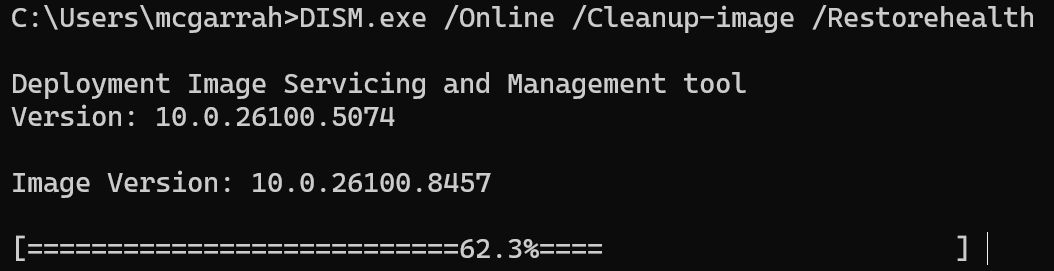
If you’re running Windows 11 (especially 24H2) and attempting to repair your system using the DISM /Online /Cleanup-Image /RestoreHealth command, you might have run into a frustrating issue: the progress bar appears to get completely stuck at 62.3% for minutes or even hours.
You might be asking yourself, “What is my system doing? Is it hung?”
The short answer is: No, it’s not hanging. Your system is actively busy checking, downloading, applying, and verifying packages.
Here’s a breakdown of why this happens, how to monitor the actual progress, and what to look out for on Windows 11 24H2.
The Root Cause
This issue frequently surfaces after updates (such as updating to 24H2 Build 26100.3194). When running a component store health check (/CheckHealth), DISM may find problems and prompt you to run /RestoreHealth.
During this restoration, DISM attempts to repair damaged packages located in your C:\Windows\WinSxS directory. For example, a photon package (amd64_userexperience-photon...) can get corrupted during an update. While DISM is working hard to resolve this, the visible progress bar freezes at 62.3%.
How to Monitor DISM’s Actual Progress
Instead of staring at a stuck percentage and prematurely terminating the process (which will just force it to start all over again next time), you can watch what DISM is doing under the hood.
DISM logs all of its activities in the Component Based Servicing (CBS) log. You can tail this log in real-time using PowerShell.
- Open PowerShell as an Administrator.
- Run the following command:
Get-Content C:\Windows\Logs\CBS\CBS.log -tail 10 -wait
As you watch your PowerShell window, you’ll see new lines being added regularly. This confirms the system is making progress.
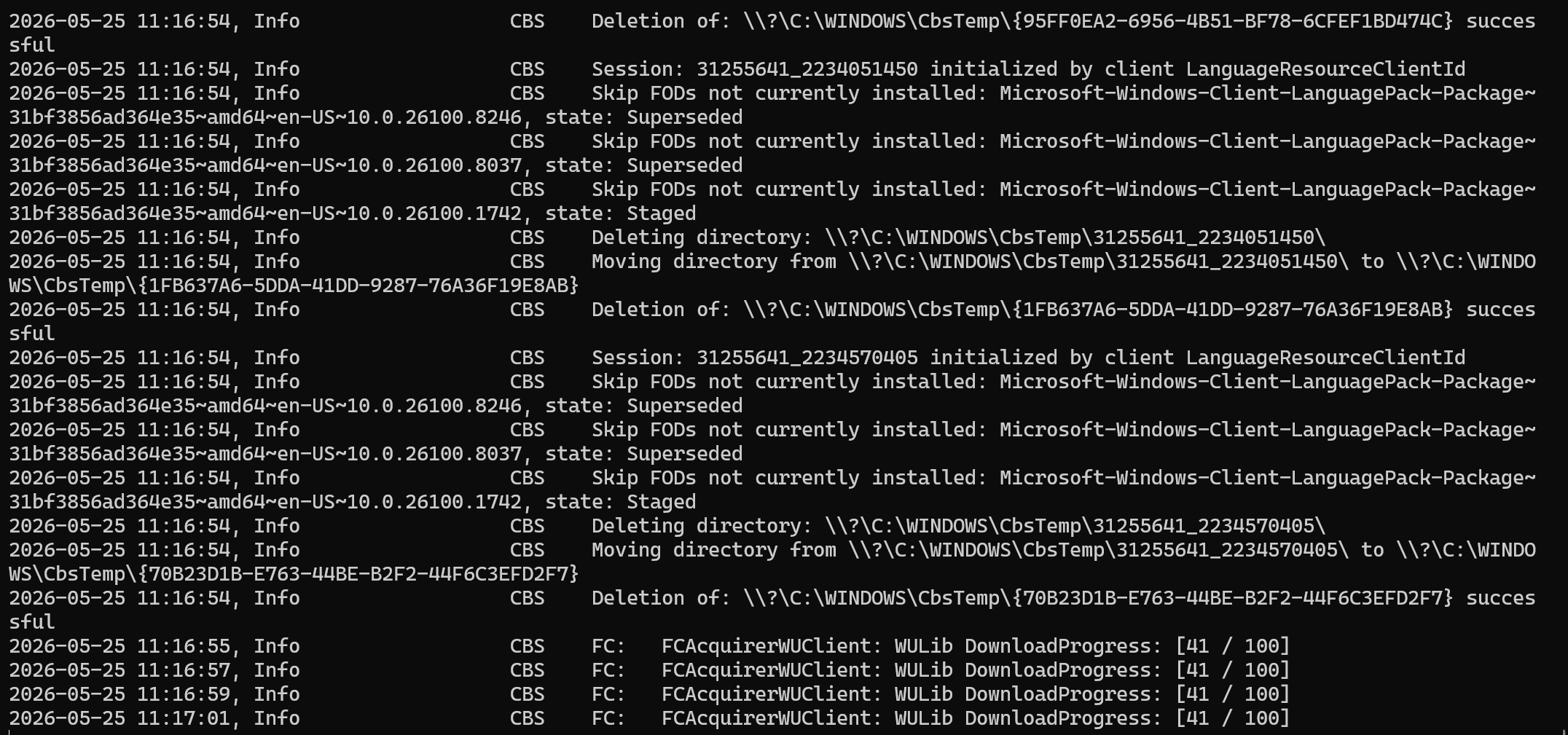
(Note: Depending on your system speed, disk I/O, and internet connection, this phase can take anywhere from 20 minutes to several hours. Be patient!)
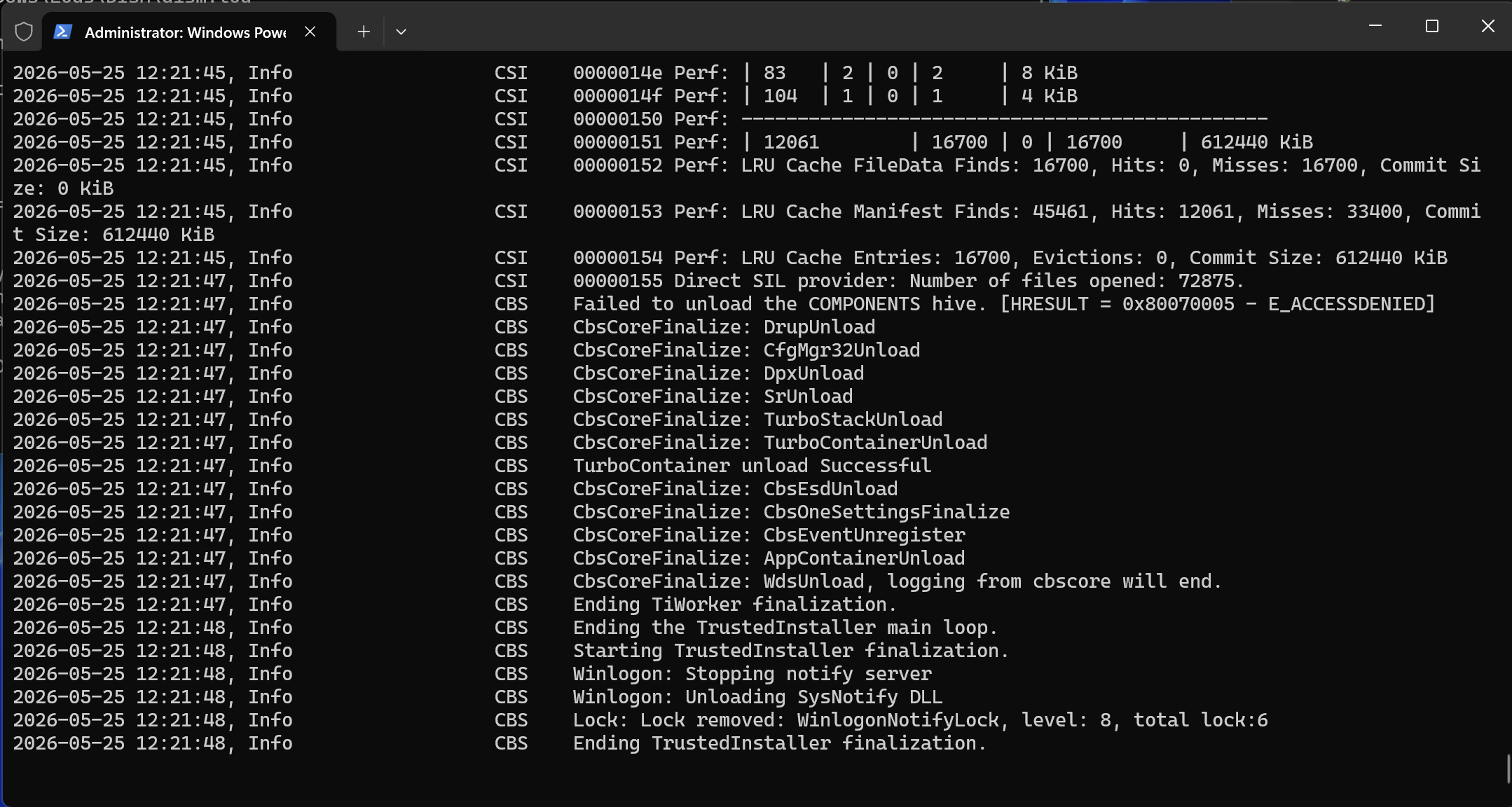
The DISM command has fully finished when you see the line:
Ending TrustedInstaller finalization.
Here is an example of what the log output looks like upon a successful completion:
2026-05-25 12:21:47, Info                  CBS    CbsCoreFinalize: AppContainerUnload
2026-05-25 12:21:47, Info                  CBS    CbsCoreFinalize: WdsUnload, logging from cbscore will end.
2026-05-25 12:21:47, Info                  CBS    Ending TiWorker finalization.
2026-05-25 12:21:48, Info                  CBS    Ending the TrustedInstaller main loop.
2026-05-25 12:21:48, Info                  CBS    Starting TrustedInstaller finalization.
2026-05-25 12:21:48, Info                  CBS    Winlogon: Stopping notify server
2026-05-25 12:21:48, Info                  CBS    Winlogon: Unloading SysNotify DLL
2026-05-25 12:21:48, Info                  CBS    Lock: Lock removed: WinlogonNotifyLock, level: 8, total lock:6
2026-05-25 12:21:48, Info                  CBS    Ending TrustedInstaller finalization.
Once DISM is complete, the Windows Modules Installer (TrustedInstaller) service will shut itself down because there’s nothing left for it to do.
The Next Step: SFC /scannow
Once DISM /RestoreHealth has completed successfully, the classically recommended next step is to immediately run the System File Checker:
sfc /scannow
Why do this? DISM repairs the Component Store (the Windows side-by-side backup repository). It does not necessarily fix the active, running files on your system. By running sfc /scannow after DISM, the System File Checker can now use the newly repaired, healthy Component Store to confidently replace any corrupted or missing system files currently in use by Windows.
A Warning for Windows 11 24H2 Users
If you analyze your component store (/AnalyzeComponentStore) and notice reclaimable packages, be aware that there are two deeply superseded packages from the base version 26100.1742 that are likely here to stay until the next major release (25H2):
[Microsoft-Windows-FodMetadataServicing-Desktop-Metadata-Package~...~10.0.26100.1742][Package_for_RollupFix~...~26100.1742.1.10]
If you examine the CBS.log, you’ll see these marked as "is a top-level package and is deeply superseded".
Do not attempt to force-remove or “fix” these specific packages. Trying to manually strip them out has been known to heavily corrupt Windows 11 24H2, requiring a full reinstallation or a backup restore to fix.