VS Code Markdown Preview: Closing the macOS vs Windows Context Menu Gap
· 4 min readIf you use VS Code across macOS, Windows, and WSL2, you have probably noticed that the Markdown preview experience is not consistent across platforms.
All three platforms have the “Open Preview to the Side” button in the editor title bar — the split-pane icon in the top-right corner. That button is always there:
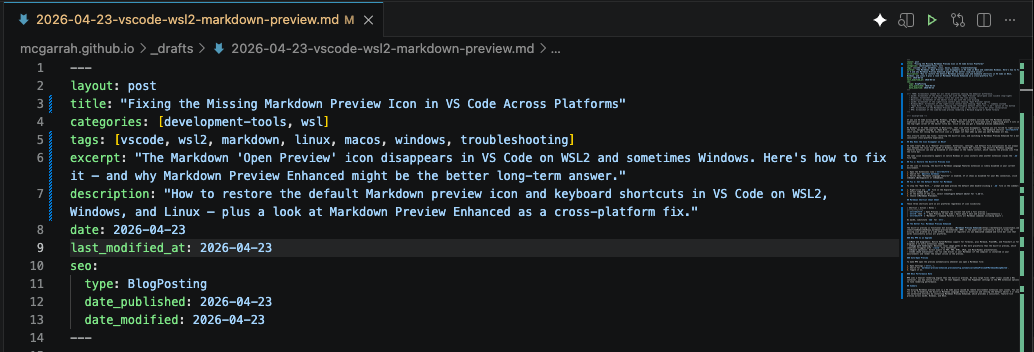
Here is a closer look at that button area:

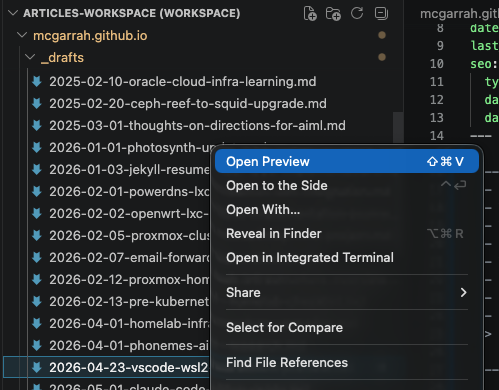
The difference is in the right-click context menu. On macOS, right-clicking a Markdown file in the Explorer gives you “Open Preview” and “Open Preview to the Side” right at the top of the menu — one click and you are in the preview:
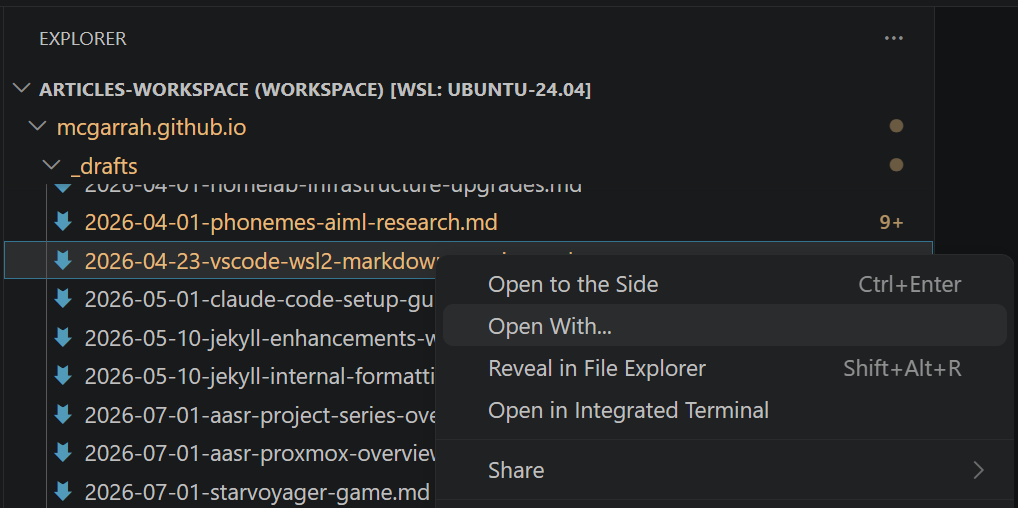
On Windows and WSL2/Linux, those options are missing from the context menu. Instead you only get “Open With…” which opens a secondary list of editors to choose from:
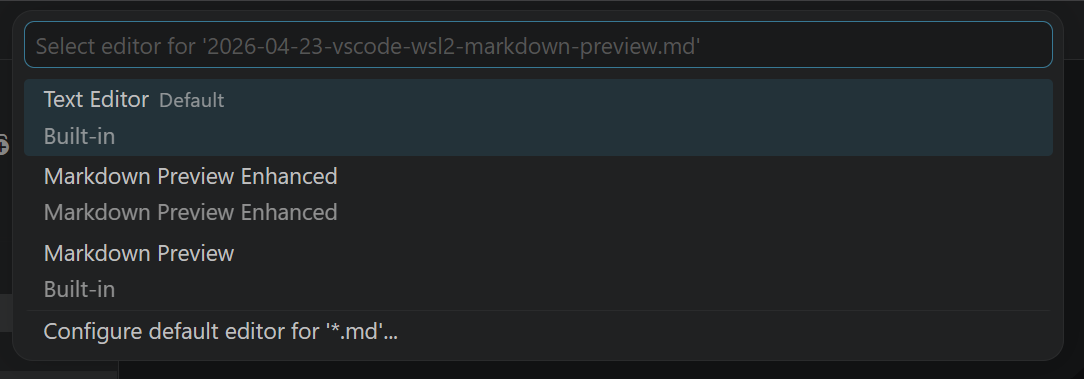
Clicking “Open With…” reveals a submenu where you have to pick the editor — an extra click and a hunt every time you want to preview a Markdown file:
The keyboard shortcut Ctrl+Shift+V still works on all platforms, but if you are a mouse-driven user or just want the same quick context menu experience everywhere, this gap is a daily annoyance.
This article covers how to close that gap — both with built-in settings and with Markdown Preview Enhanced as a longer-term fix.
Why Is the Context Menu Different?
VS Code treats WSL as a “Remote” environment. Extensions, settings, and default file associations do not always sync between the local host (macOS or Windows) and the remote WSL instance. The built-in Markdown Language Features extension can end up disabled or overridden in the remote context, which removes the preview options from the context menu.
The same issue appears on native Windows or Linux installs when another extension claims the .md file type or when the built-in Markdown extension is not the default handler.
Fix 1: Re-Enable the Built-In Markdown Extension
If the context menu is missing the preview options, the built-in Markdown Language Features extension is likely disabled in your current environment.
- Open the Extensions view (
Ctrl+Shift+X). - Search for
@builtin markdown. - Verify that “Markdown Language Features” is enabled. If it shows as disabled for your WSL connection, click Enable (Workspace) or Enable.
Fix 2: Set the Default Editor for Markdown
Even with the extension enabled, VS Code may still show “Open With…” instead of “Open Preview” in the context menu. Setting the default editor for .md files tells VS Code to stop asking:
- Right-click any
.mdfile in the Explorer. - Select Open With…
- At the bottom of the list, select Configure default editor for ‘*.md’.
- Choose Markdown Preview.
Markdown Shortcut Cheat Sheet
These three shortcuts work on all platforms regardless of icon visibility:
| Shortcut | Action | Notes |
|---|---|---|
Ctrl+Shift+V |
Open Preview | Replaces the current tab with a full preview |
Ctrl+K then V |
Open Preview to the Side | Split pane — edit and preview simultaneously |
Ctrl+Shift+P → “Markdown” |
Command Palette | Lists all Markdown commands including export |
On macOS, substitute Cmd for Ctrl.
The Better Fix: Markdown Preview Enhanced
The built-in preview is functional but minimal. Markdown Preview Enhanced (MPE) is the power-user alternative — and it fixes the context menu gap as a side effect, because it registers its own dedicated commands and context menu entries that work consistently across all platforms.
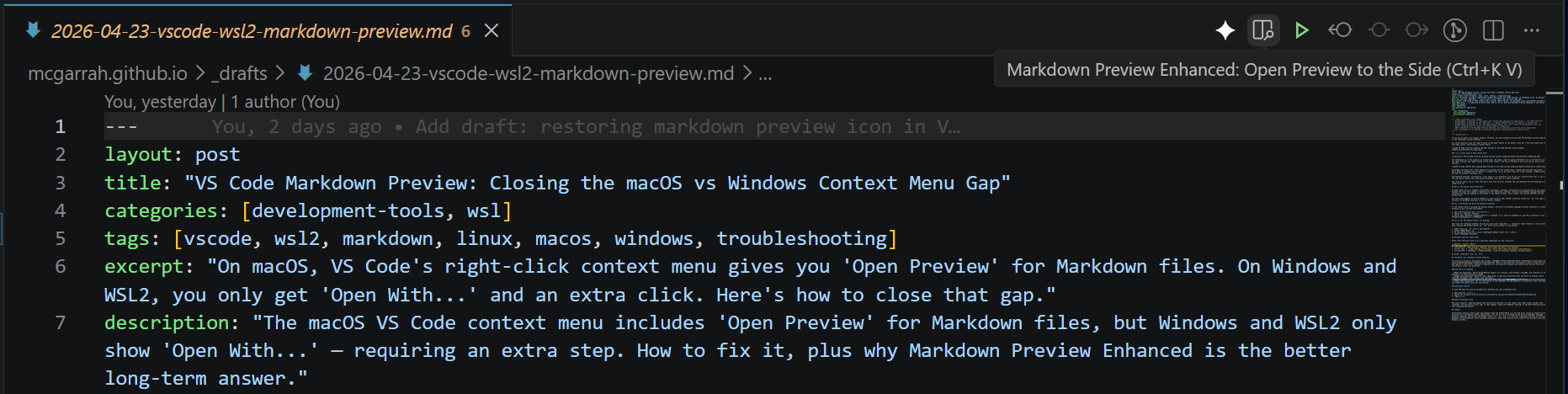
After installing MPE, you get a dedicated preview icon in the editor title bar that works reliably across all platforms:
Why MPE Is an Upgrade
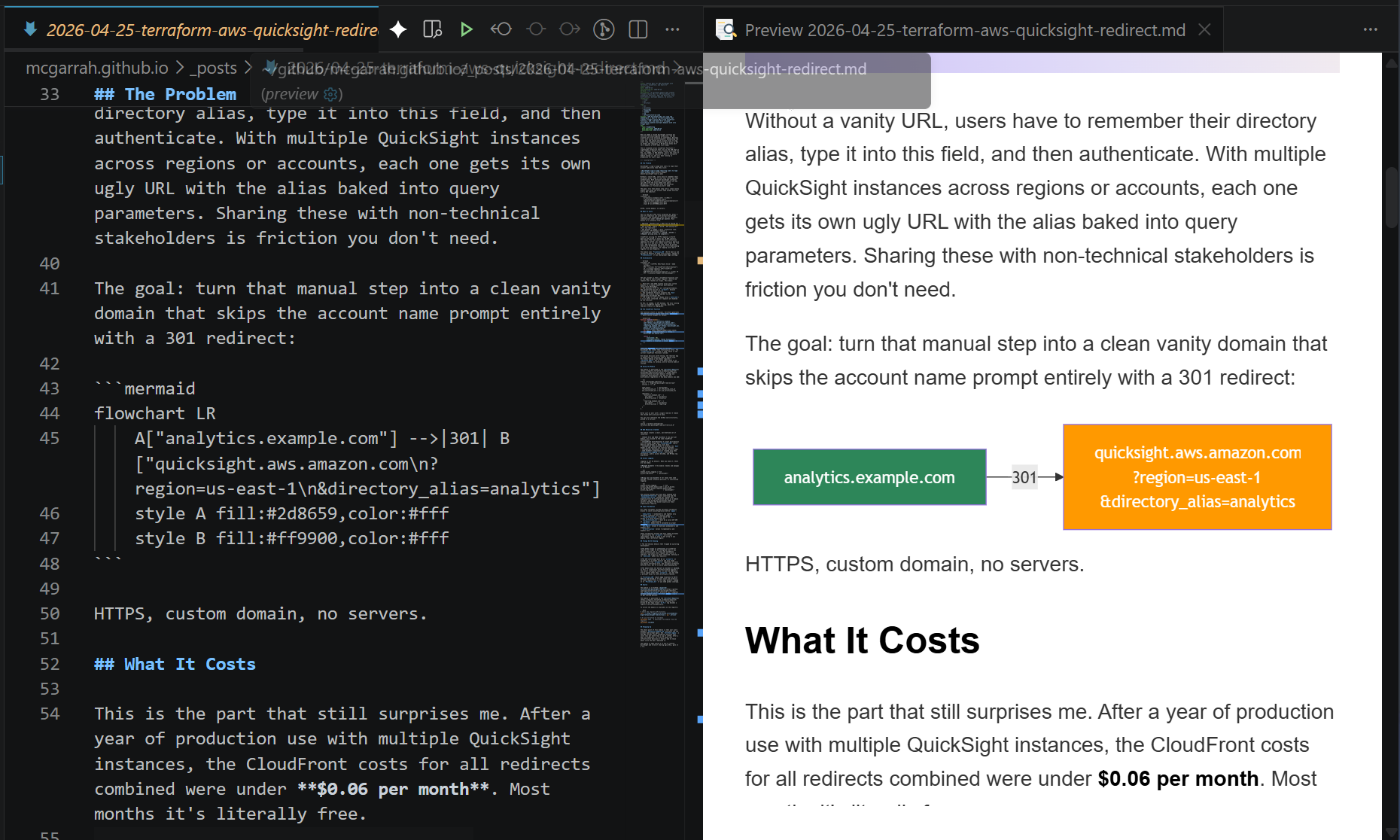
- Math and diagrams: Native KaTeX/MathJax support for formulas, plus Mermaid, PlantUML, and Flowchart.js for diagrams — no extra extensions needed.
- Image path handling: Resolves local image paths in WSL more gracefully than the built-in preview, which sometimes struggles with
\\wsl$file resolution. - Export options: Direct export to PDF, PNG, HTML, ePub, and Marp/Pandoc presentations.
- Code chunk execution: Can run code blocks in your Markdown (if the compiler is installed in your environment) and render the output inline in the preview.
Here is MPE rendering a side-by-side preview with rich content that the built-in preview cannot handle:
Auto-Open Preview
To make MPE open the preview automatically whenever you open a Markdown file:
- Open Settings (
Ctrl+,). - Search for
markdown-preview-enhanced.previewConfig.automaticallyShowPreviewOfMarkdownBeingEdited. - Toggle it on.
WSL2 Performance Note
MPE uses a heavier rendering engine than the built-in preview. On very large files (10k+ lines) inside a WSL container, you may notice scroll lag. If that happens, check the Puppeteer settings in the MPE extension options to tune rendering performance.
Summary
The Markdown preview context menu gap between macOS and Windows/WSL2 is a VS Code quirk caused by remote environment extension sync and default editor associations. You can fix it by re-enabling the built-in Markdown Language Features extension and setting the default editor for .md files — or skip the workaround entirely by installing Markdown Preview Enhanced, which provides consistent context menu entries and a feature-rich preview across macOS, Windows, and WSL2.