Stop the macOS Dock from Jumping Between Monitors
· 4 min readIf you use multiple monitors on macOS, you have almost certainly experienced this: you move your mouse to the bottom of the wrong screen and the Dock teleports away from where you put it. You drag it back, and five minutes later it jumps again. It is one of those small annoyances that compounds into genuine frustration over a workday.
I run a multi-monitor setup on my macOS workstation and this drove me crazy until I tracked down the actual causes and fixes. None of this is complicated, but Apple does not make it obvious.
Why the Dock Jumps
The Dock follows a simple rule: it appears on whichever display the cursor pushes against the bottom edge. If your cursor drifts to the bottom of a secondary monitor — even briefly — macOS moves the Dock there. This is by design, not a bug. Apple considers it a feature for multi-monitor workflows.
Three things make it worse:
- Accidental activation — The Dock jumps when the cursor hits the bottom of an inactive display. If you are moving the mouse quickly between screens, you will trigger this constantly.
- External display wakeup — When macOS wakes from sleep, it can default the Dock to the wrong display. This is especially common with external monitors that take a moment to handshake.
- Display arrangement — If your displays are arranged vertically in System Settings → Displays → Arrangement, the Dock behaves unpredictably because the bottom edge of one display overlaps with the top of another.
The Quick Fix: Click and Hold
The fastest way to move the Dock back is also the least documented:
- Move your cursor to the very bottom edge of the screen where you want the Dock.
- Push the cursor down against the edge and hold it there for 2–3 seconds.
- The Dock slides back to that display.
This is not a permanent fix — the Dock will jump again the next time you trigger it — but it is the fastest recovery when it happens.
The Permanent Fix: Mission Control Settings
The setting that causes most of the jumping is buried in Mission Control:
- Open System Settings → Desktop & Dock.
- Scroll down to the Mission Control section.
- Toggle off “Automatically rearrange Spaces based on most recent use”.
This setting causes macOS to reorder your Spaces (and by extension, the Dock’s display assignment) based on which screen you used most recently. Turning it off keeps your Spaces — and the Dock — where you put them.
While you are in that settings panel, also check:
- “Displays have separate Spaces” should be enabled. This gives each monitor its own menu bar and improves multi-monitor behavior overall. Without it, macOS treats all displays as one continuous Space, which makes the Dock even more prone to wandering.
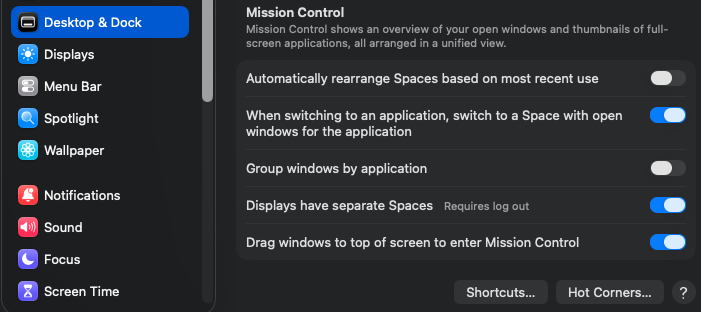
Note that toggling “Displays have separate Spaces” requires a logout and login to take effect.
Display Arrangement Matters
If your monitors are physically side by side but macOS thinks one is above the other, the Dock will behave strangely. Check your arrangement:
- Open System Settings → Displays.
- Click Arrange… (or drag the display icons directly in newer macOS versions).
- Make sure the display positions match your physical layout.
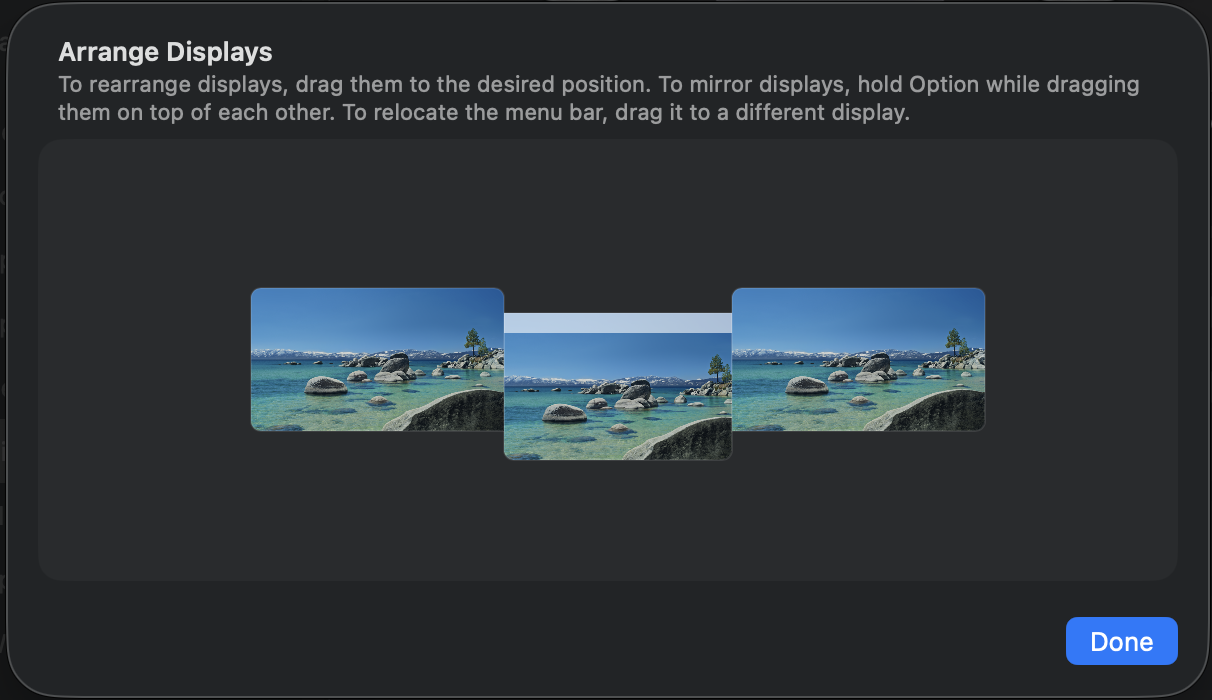
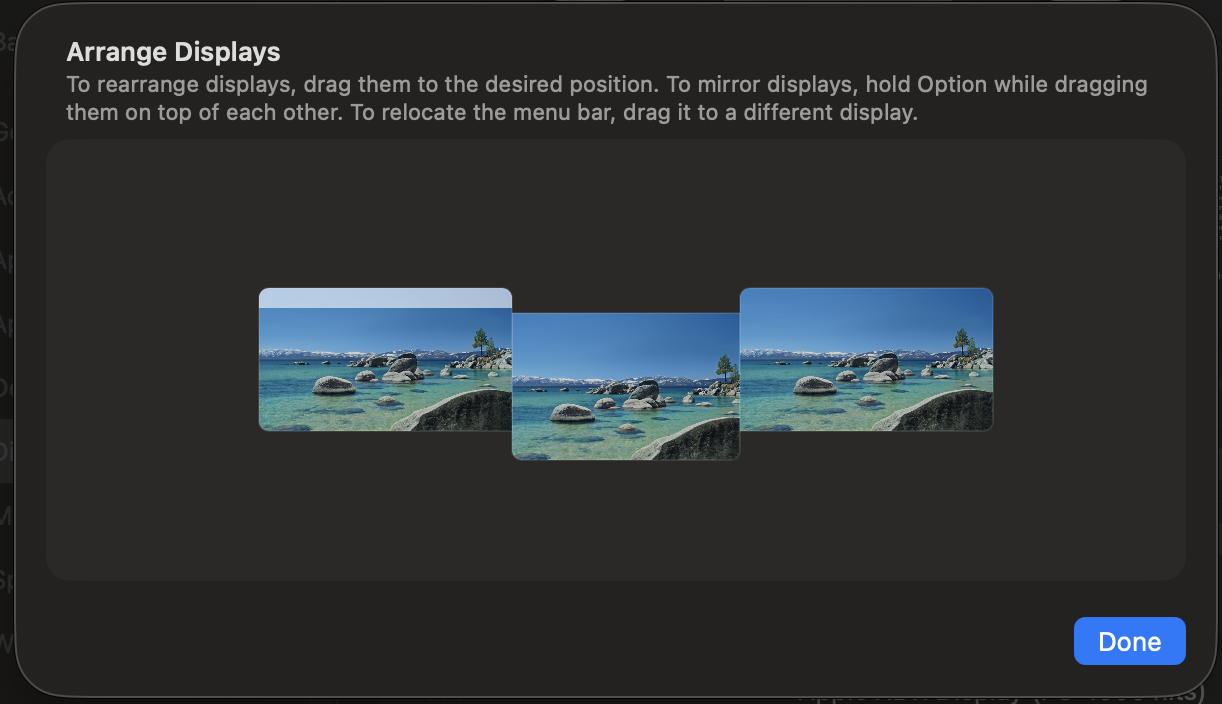
- The white bar at the top of one display icon indicates which monitor has the menu bar — drag it to your primary display if it is on the wrong one.
The key detail: the Dock lives on the display with the white menu bar by default, but it can still jump to other displays. The main monitor (white bar) and the Dock’s home display are independent — you can have the menu bar on your laptop screen and pin the Dock to an external monitor, or vice versa. Understanding this distinction is what makes the arrangement settings click.
Vertical arrangements are particularly problematic because the bottom edge of the top display and the top edge of the bottom display share a boundary. The Dock can get confused about which display owns the bottom edge.
The Displays settings panel is the starting point — note the Arrange… button in the lower right corner:
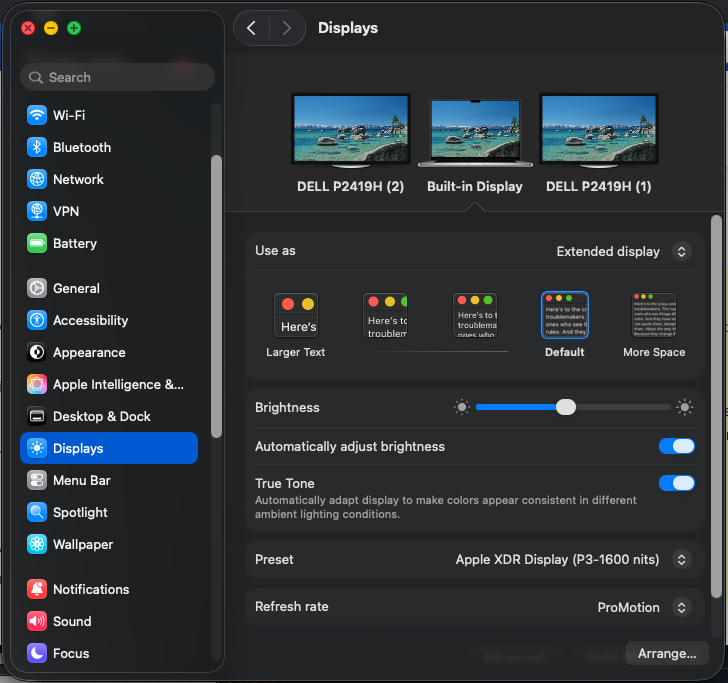
Clicking Arrange… opens the arrangement view where you drag displays to match your physical layout. The key detail is the instruction at the top: “To relocate the menu bar, drag it to a different display.” The menu bar — and by default the Dock — is hard-wired to whichever display has that white bar:
Vertical arrangements are particularly problematic because the bottom edge of the top display and the top edge of the bottom display share a boundary. The Dock can get confused about which display owns the bottom edge.
Summary
| Fix | Permanence | Effort |
|---|---|---|
| Click and hold bottom edge for 2–3 seconds | Temporary | Instant |
| Disable “Automatically rearrange Spaces” | Permanent | 30 seconds |
| Enable “Displays have separate Spaces” | Permanent | 30 seconds |
| Fix display arrangement | Permanent | 1 minute |
The Mission Control toggle is the one that fixes it for most people. If you only do one thing, do that.