Upgrading from a Basic Favicon to a Modern Device Set in Jekyll
· 8 min readIn my recent article on The Small Things: Polish Features That Make a Jekyll Blog Feel Professional, I confessed that my favicon implementation was the bare minimum: a single resolution favicon.ico file dropped in the site root. It barely qualifies as solving the problem.
While that prevents the standard 404 error when a desktop browser requests the icon, it completely ignores the modern web. Mobile devices, tablets, and modern browsers expect high-resolution PNGs, Apple Touch icons, and web manifests. Without them, users bookmarking the site to their home screens get a generic, ugly letter block instead of a proper logo.
It was sitting on my internal TODO.md as a “Quick Win” for far too long. Here is how I finally fixed it and implemented a modern favicon set.
“It’s the small things that matter. The details.” — The Twelfth Doctor
The Problem with Just favicon.ico
If you check your web server logs, you’ll likely see a stream of 404 errors for files you never created:
/apple-touch-icon-precomposed.png/apple-touch-icon.png
iOS devices automatically request these files when a user adds your site to their home screen. Android devices look for an Android Chrome manifest. If they aren’t there, you get degraded UX and messy logs.
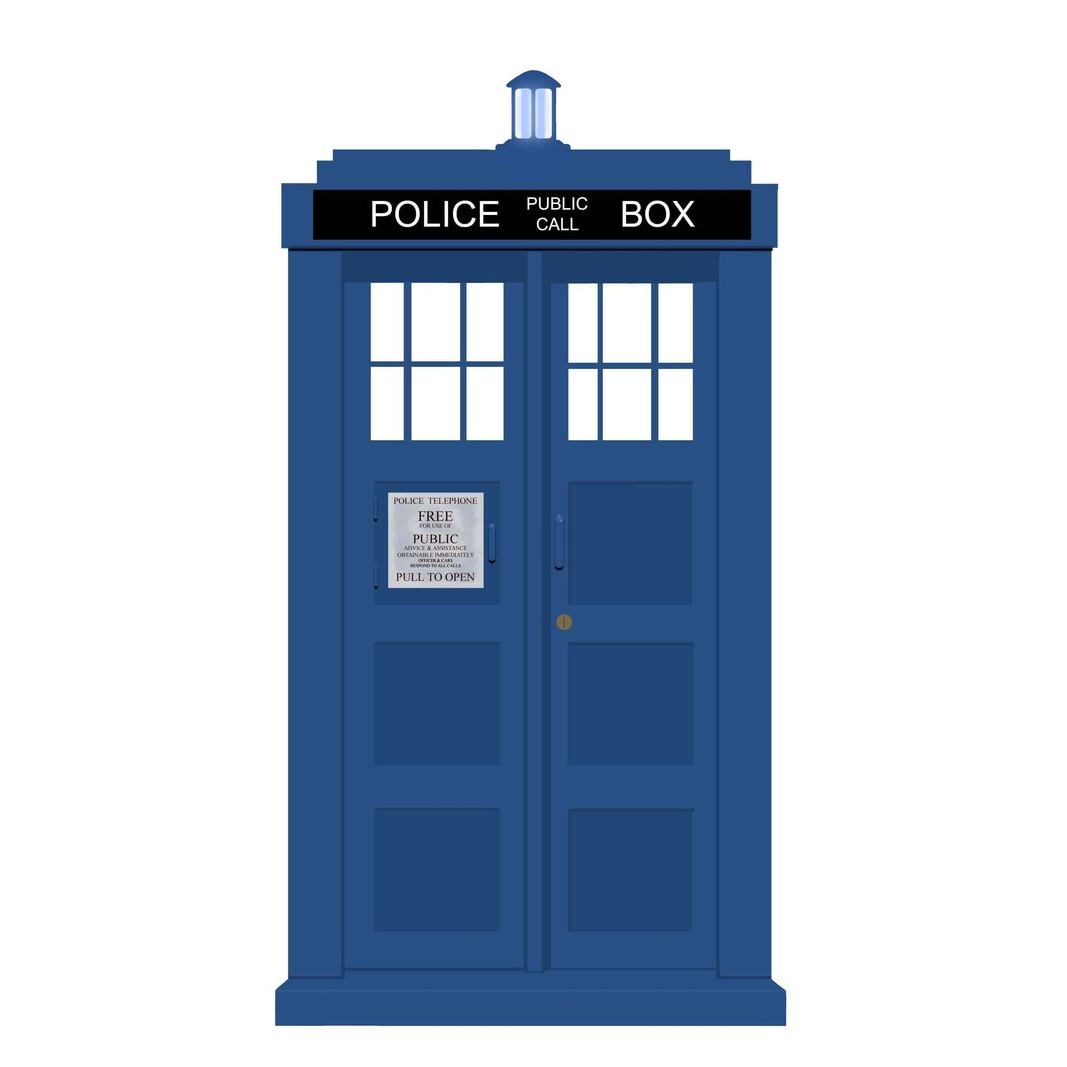
Here is the source image I started with — a TARDIS icon at 1067x1067 pixels with a solid white background:
Step 1: Generate the Assets
You have two choices here. I went with the CLI route because I wanted control over the transparency — the web generators do not offer that option — and because I am a UNIX guy of old who is perfectly comfortable in a terminal. That said, if you just want a zip file of correctly sized icons without thinking about it, the web generator is the faster path.
Option A: The Fast Track (Web Generator)
If you do not need transparency or custom processing, this is the easiest route.
- Start with a high-resolution version of your logo (ideally a square PNG or SVG, at least 260x260 pixels).
- Go to RealFaviconGenerator.net.
- Upload your image and configure the exact padding, background colors, and styling for iOS, Android, Windows Metro, and macOS Safari pinned tabs.
- Generate and download the resulting
.zippackage.
Option B: The Local CLI Route (ImageMagick)
This is the route I took. If you want full control over the output — especially transparency — ImageMagick gives you that. Assuming your source image is logo.png:
Optional: Make the background transparent
If your source image has a solid background (like white) and you want it transparent, you can strip it out first. This is the main reason I chose the CLI route — none of the web generators I found offered this.
The trick is the fuzz factor. A naive -transparent white only removes exact #FFFFFF pixels and misses the slightly blended, anti-aliased pixels at the edges of the logo, leaving a visible white halo. I started at 5% and it still had noticeable halo artifacts, so I bumped it 5% at a time until 10% produced a clean result:
convert logo.png -fuzz 10% -transparent white transparent-logo.png
Here is the result — the same icon after stripping the white background at 10% fuzz. The anti-aliased edges are clean with no visible halo:
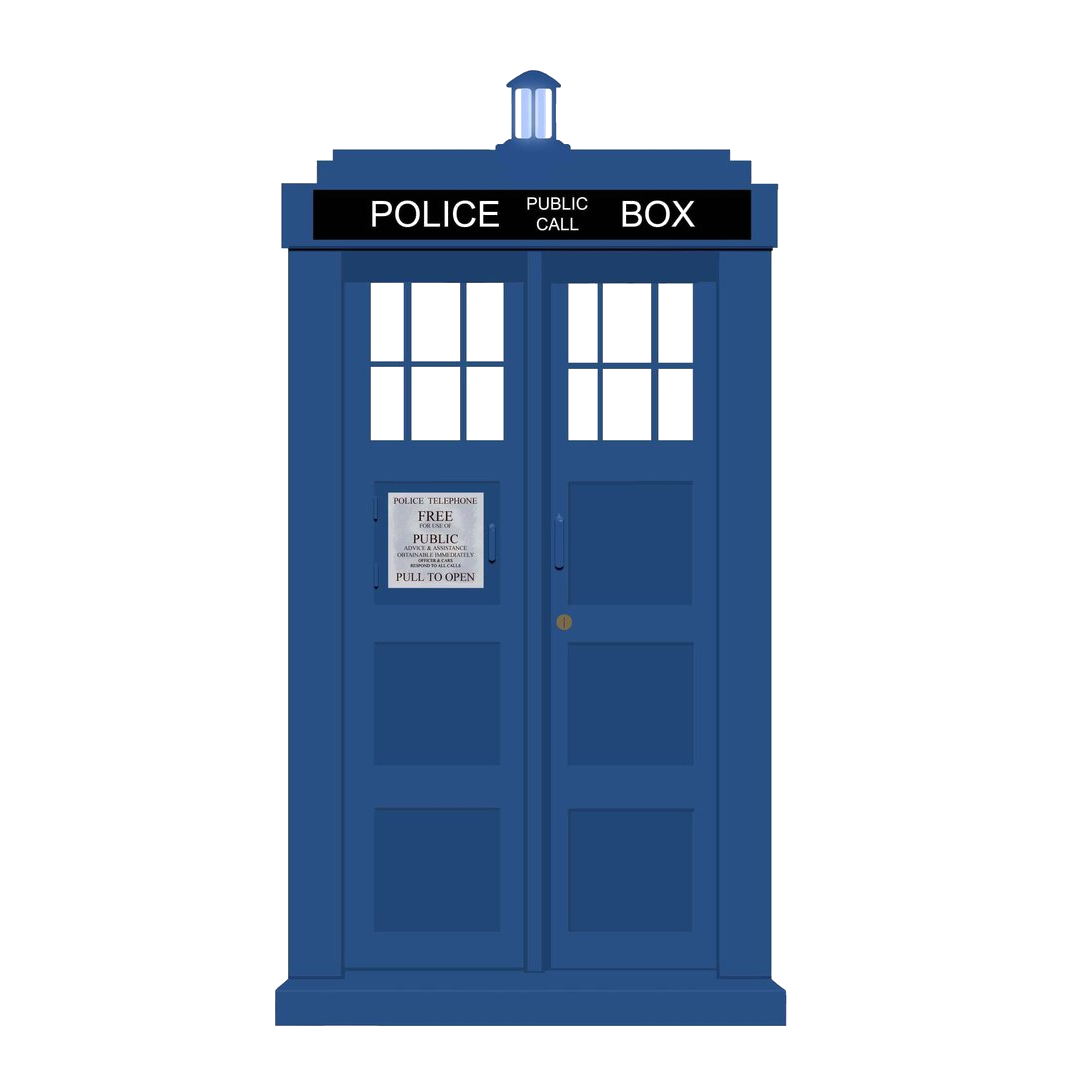
(If you do this, just substitute transparent-logo.png for logo.png in the sizing commands below.)
Convert files
# Generate the Apple Touch icon
convert logo.png -resize 180x180 apple-touch-icon.png

# Generate the standard PNG favicons
convert logo.png -resize 32x32 favicon-32x32.png
convert logo.png -resize 16x16 favicon-16x16.png

# Combine them into a multi-resolution favicon.ico
convert favicon-16x16.png favicon-32x32.png favicon.ico

# Generate Android Chrome icons for the manifest
convert logo.png -resize 192x192 favicon-192x192.png
convert logo.png -resize 512x512 favicon-512x512.png
You will also need to manually create the site.webmanifest JSON file to register your Android icons:
{
  "name": "McGarrah Technical Blog",
  "short_name": "McGarrah",
  "icons": [
    { "src": "/favicon-192x192.png", "sizes": "192x192", "type": "image/png" },
    { "src": "/favicon-512x512.png", "sizes": "512x512", "type": "image/png" }
  ],
  "theme_color": "#ffffff",
  "background_color": "#ffffff",
  "display": "standalone"
}
Step 2: Add Files to the Jekyll Root
If you used the web generator, extract the .zip directly into your Jekyll project’s root directory. If you used ImageMagick, move the generated files there along with your hand-written site.webmanifest. Either way, you should end up with a collection of files including:
apple-touch-icon.png(180x180)favicon-32x32.pngfavicon-16x16.pngsite.webmanifestfavicon.ico
Note: It’s important to keep these at the root level (/), as many tools and legacy browsers request them from the root by default without parsing your HTML.
Step 3: Update the HTML Head
The web generator provides a block of HTML to paste into your site. In a standard Jekyll setup, this goes into _includes/head.html or directly inside the <head> block of _layouts/default.html. If you took the ImageMagick route, the block below is what you need.
To ensure the links work regardless of environment or subdirectories, use Jekyll’s relative_url filter. I added this block just before the closing </head> tag:
<!-- Favicons -->
<link rel="apple-touch-icon" sizes="180x180" href="{{ '/apple-touch-icon.png' | relative_url }}">
<link rel="icon" type="image/png" sizes="32x32" href="{{ '/favicon-32x32.png' | relative_url }}">
<link rel="icon" type="image/png" sizes="16x16" href="{{ '/favicon-16x16.png' | relative_url }}">
<link rel="manifest" href="{{ '/site.webmanifest' | relative_url }}">
<link rel="shortcut icon" href="{{ '/favicon.ico' | relative_url }}">
<meta name="theme-color" content="#ffffff">
Using relative_url ensures that if I ever preview the site in a sub-path or change domains, the asset links won’t break.
Testing Locally Before Pushing
Before pushing any of this to GitHub Pages, I tested it locally with bundle exec jekyll serve several times. Favicons are notoriously sticky in browser caches, so I made a habit of hard-refreshing (Ctrl+Shift+R) and checking the Network tab in DevTools to confirm the browser was actually fetching the new assets instead of serving stale ones.
Beyond the icons themselves, I verified that the HTML changes in _layouts/default.html were rendering correctly by viewing the page source and confirming all six <link> tags appeared in the <head>. I also hit http://localhost:4000/site.webmanifest directly in the browser to make sure Jekyll was serving the manifest file and that the JSON was valid with the correct icon paths. A missing or malformed manifest is silent — no errors in the console, just a broken “Add to Home Screen” experience that you would never notice without checking.
The transparency fuzz factor was the main thing I iterated on locally. Each time I regenerated the PNGs with a different percentage, I restarted Jekyll and checked the Apple Touch icon at 180x180 to see if the halo was gone. That feedback loop — regenerate, restart, hard-refresh — is much faster against a local server than waiting for a GitHub Pages deploy.
Once everything looked right locally, I pushed to GitHub and verified on the live site at mcgarrah.org. The deploy picked it up on the next build and the icons rendered identically to what I saw in local testing.
The Result
The whole process took about thirty minutes of actual work, spread across an hour of wall time because I was multitasking. Most of that was the local iteration on ImageMagick transparency — the favicon generation and HTML changes themselves were genuinely quick. After deploying, the stream of /apple-touch-icon.png 404 errors in my server logs disappeared immediately. More importantly, bookmarking the site to an iPhone home screen now shows my actual logo instead of a generic gray letter “M” in a rounded square.
Here is the final set of generated icons at their actual sizes, from the 512x512 Android Chrome icon down to the 16x16 browser tab favicon:
| Icon | Size | Preview |
|---|---|---|
| favicon-512x512.png | 512x512 | 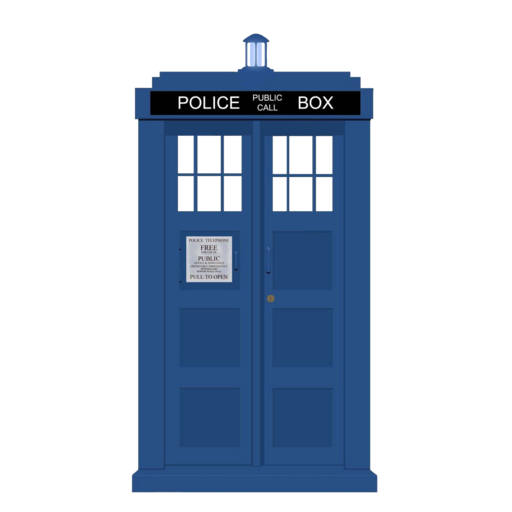 |
| favicon-192x192.png | 192x192 |  |
| apple-touch-icon.png | 180x180 | 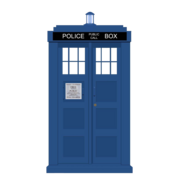 |
| favicon-32x32.png | 32x32 |  |
| favicon-16x16.png | 16x16 |  |
If you have a Jekyll site with just a bare favicon.ico, check your logs — you are almost certainly serving 404s for assets that mobile devices expect to exist. A few generated PNGs and six lines of HTML in your layout is all it takes to fix it.
My resume site runs as a sub-path off the same domain, so it picks up the root-level favicon assets automatically. Its Jekyll theme has its own _includes/head.html, which needed the same <link> block added, but the image files are shared. If you run multiple Jekyll projects under one domain, that is one less thing to duplicate.
“Never ignore the little things. In the whole wide universe, the little things are the most important.” — The Eleventh Doctor
Gallifreyan script generated with the Gallifreyan Translation Helper.